

How to Create Training Videos With AI Avatars: A Beginner's Guide
A training video stalls because nobody is free to record. Then the policy changes in week three and the whole thing needs shooting again.
AI avatars break that cycle. You write a script, pick a digital presenter, choose a voice and generate the video. Change a line six months later and you regenerate the scene instead of rebooking a studio.
The catch is that not all AI presenters are equal, and the gap shows up exactly where training lives: long modules, frequent updates, multiple languages. This guide walks through building your first one properly.
What AI Avatars Are, and Why Most Look Stiff
An AI avatar is a script-driven digital presenter. You supply text, the platform generates speech in a chosen voice, and the avatar's movements sync to it. Updating a line means editing text and regenerating, not recording a new performance.
The default output of most tools is a talking head. A static figure framed from the chest up, barely moving, wearing the same neutral expression whether the script is announcing a promotion or explaining a data breach.
For a short marketing clip nobody notices. Across a compliance module that runs fifteen minutes, learners absolutely notice, and the stiffness starts reading as low effort. The newer generation of avatars are rendered full-body, gesture in time with the script and shift micro-expressions to match its tone.
Decide If an Avatar Fits This Lesson
An avatar is a good fit when:
- The goal is explaining a policy, process or product update rather than demonstrating a physical skill.
- The content needs regular updates or versions in several languages.
- The subject matter expert can review a script but can't get to a camera.
For a forklift inspection, show the actual equipment and the actual hands. Recorded demonstrations still win wherever learners need to watch a real task being performed.
Everything else is fair game, including the categories people assume need a human. Leadership updates, onboarding, compliance refreshers and practice scenarios all work well, and they are the ones that decay fastest and benefit most from being cheap to rebuild.
Plan Your Micro-Lesson
Write one learning outcome, identify the audience, then sketch three to seven scenes. Each scene covers one idea and carries a relevant visual, whether that's a slide, a screen recording or a highlighted document excerpt.
A policy lesson might ask learners to identify which expenses need approval. Show the rule, walk through an example, finish with a short decision question. The same scripting discipline applies whether a human or an avatar delivers it.
At roughly 120 to 150 spoken words per minute, a two-minute lesson needs about 240 to 300 words. Leave room for pauses and for people to actually read the visuals.
Pick Your Avatar Type
Stock avatars are the straightforward choice for a first module. Personal avatars add a recognizable colleague but need consent and setup. Prompt-built avatars, realistic or stylized, cover lessons where a photoreal presenter isn't the point.
Synthesia covers all three from one library. There are 240+ ready-made full-body avatars with natural gesture and accurate lip sync, personal avatars built from a single photo or a short video with optional voice cloning, and an Avatar Builder that generates a custom character from a prompt in anything from line art to photoreal. Avatars can also be prompted into scenes with specific outfits and backgrounds, which matters when a safety module needs a presenter in a hard hat rather than a blazer. Voice coverage runs to 1,000+ options across 160+ languages, and the platform is used by 90% of the Fortune 100.
In a blind test commissioned by the company, 1,013 viewers compared its best avatars against HeyGen's and preferred them roughly seven times out of ten, 4,379 picks to 2,988. One G2 reviewer described them as "the most realistic AI avatars on the market", which is the kind of claim worth checking yourself on a trial before you take anyone's word for it.
There's also a live-conversation option in beta, where the avatar listens and responds in real time instead of playing back a fixed script. That suits onboarding chats and practice scenarios rather than one-way lessons, so it's worth knowing about but not where you start.
Whichever tool you shortlist, test it with the same script and check how revisions are billed. Some platforms re-render an updated script for free, while HeyGen charges credits each time you regenerate. Over a library you update quarterly, that difference compounds quickly.
Set Up Consent and Identity
Never create a personal avatar of a colleague, executive or public figure without explicit permission. The standard to insist on is a live on-camera consent recording that can't be uploaded or bypassed, where the person in the consent clip has to match the person in the avatar footage.
Ask how the vendor handles this before you buy. A platform that lets you upload a pre-recorded consent clip on someone else's behalf is not protecting you.
Agree internally on where the avatar can appear, who is allowed to generate video with it and what happens if the person withdraws permission or leaves. Put it in writing while there is one avatar, not forty.
Produce Your First Video, Step by Step
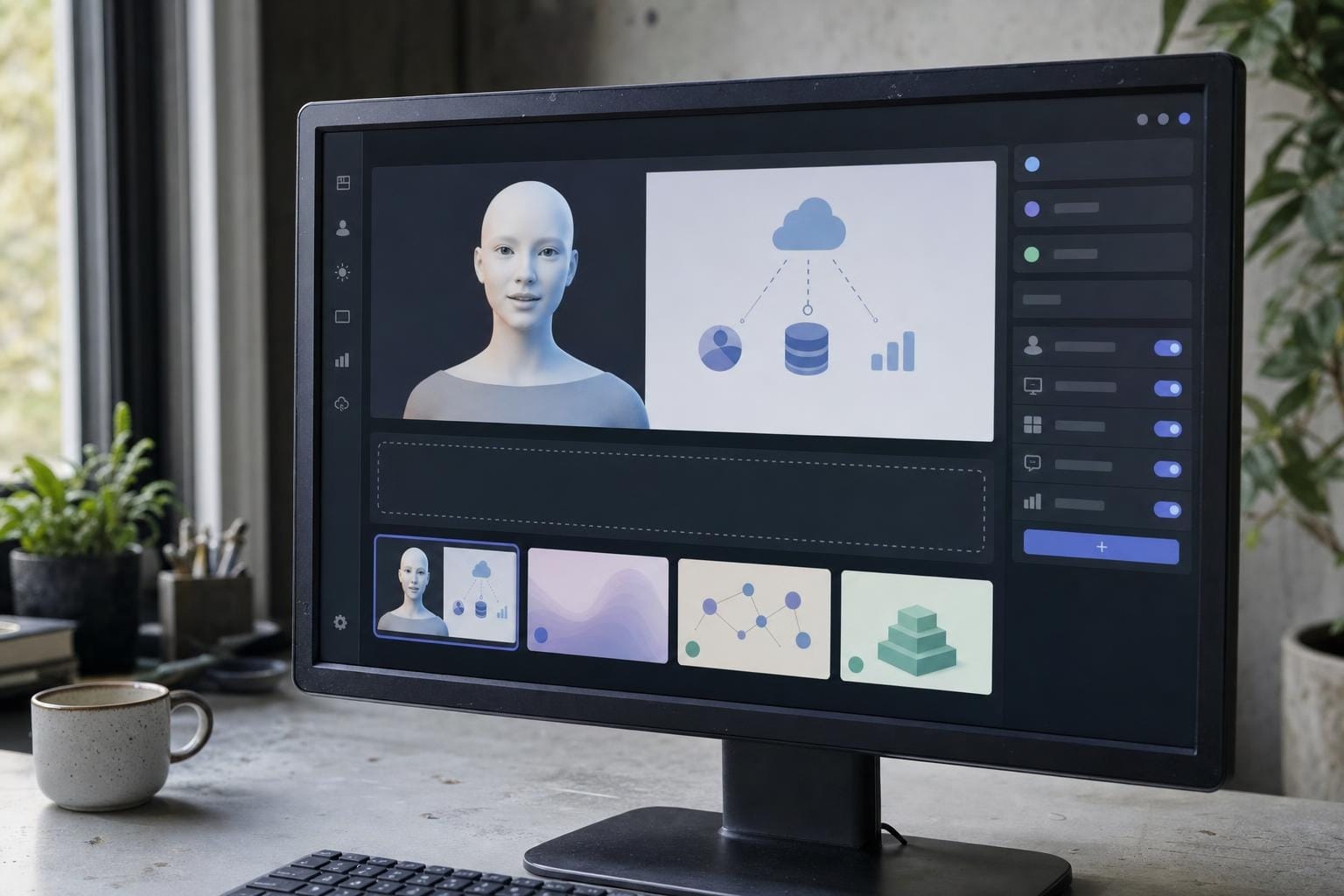
- Paste the script, divided into your planned scenes. Read it aloud first to catch awkward wording.
- Choose the avatar and framing. Leave space for captions and teaching visuals. Preview the gestures rather than assuming they suit the lesson.
- Select the voice and language. Test sentences containing names, numbers and acronyms to catch pronunciation errors early.
- Add slides or screen recordings. Match each visual to the narration and keep important detail large enough to read.
- Add captions and proofread them. Check wording, timing and placement so they never sit over the lesson.
- Generate and review the whole video. Check pacing, pronunciation, visual timing and factual accuracy before anyone else sees it.
Make It Interactive, Measurable and Multilingual
If you need completion records, check how the video works with your learning management system, because AI video platforms differ widely in what they export and what they report back. A SCORM package is the standard format, and depending on the package and the system it can return completion and quiz results. A plain video export usually can't, so it's worth understanding how SCORM works before you commit to a platform. It also helps to decide early where these modules will sit, because short lessons land better when they're built into daily workflows than when they're parked in a course catalogue nobody opens.
Confirm your plan supports the export you need, then test one module in your LMS before building more. Add a question tied to the learning outcome, because watching a video is not evidence anyone understood it.
For translation, start with one short sample. Have a fluent reviewer check meaning, product names and terminology, then review captions and on-screen text separately, since translated strings often need more room than the original.
Trust and Transparency
Learners should know when a presenter is synthetic. Add a short, readable label such as "AI-generated presenter" and use whatever provenance features the platform offers.
The stronger platforms label generated video in line with EU AI Act Article 50, hold ISO 42001 compliance for AI management and belong to the Content Authenticity Initiative. Those are useful signals in a procurement conversation, but none of them replaces a clear on-screen disclosure or a factual review by someone who knows the subject.
Disclosure requirements vary by location and use case. Check the applicable rules and your own organization's policy before publishing, especially when a video uses a real person's likeness.
Quality Checklist and Common Pitfalls
- Use readable captions and confirm the player works with keyboard navigation and screen readers.
- Have a subject matter expert review the finished video, not just the script.
- If the framing feels tight or the scene drags, shorten it rather than padding the narration.
- Pilot with a small group. Ask what they understood and what they still need in order to do the task.
Where to Go From Here
Start with one short stock-avatar module, gather feedback, then decide whether personal avatars, LMS tracking or translation justify the added work. Signing up to test this is usually free, so the only real cost of a pilot is your afternoon.
Build the governance alongside the library, not after it. And keep filmed demonstrations for the tasks where learners genuinely need to watch real hands do real work.
FAQ
How much do AI avatar tools cost?
Pricing varies by video allowance, features and billing term. Check current rates, export restrictions and whether revisions consume credits, since that last one drives the real annual cost. Most platforms offer a free tier to test quality before you pay.
Can I export to my LMS?
Some tools and plans support SCORM export. Confirm compatibility, any export limits and which completion or quiz data your LMS can actually record before purchasing.
Do I need video editing experience?
No. These platforms are built for people who have never made a video. You can start from a document, a prompt or a blank script, and the editor handles lip sync, voice and rendering.